Launch an EC2 Instance
Create an EC2 Instance
- Access the AWS Management Console
- Find EC2
- Select EC2
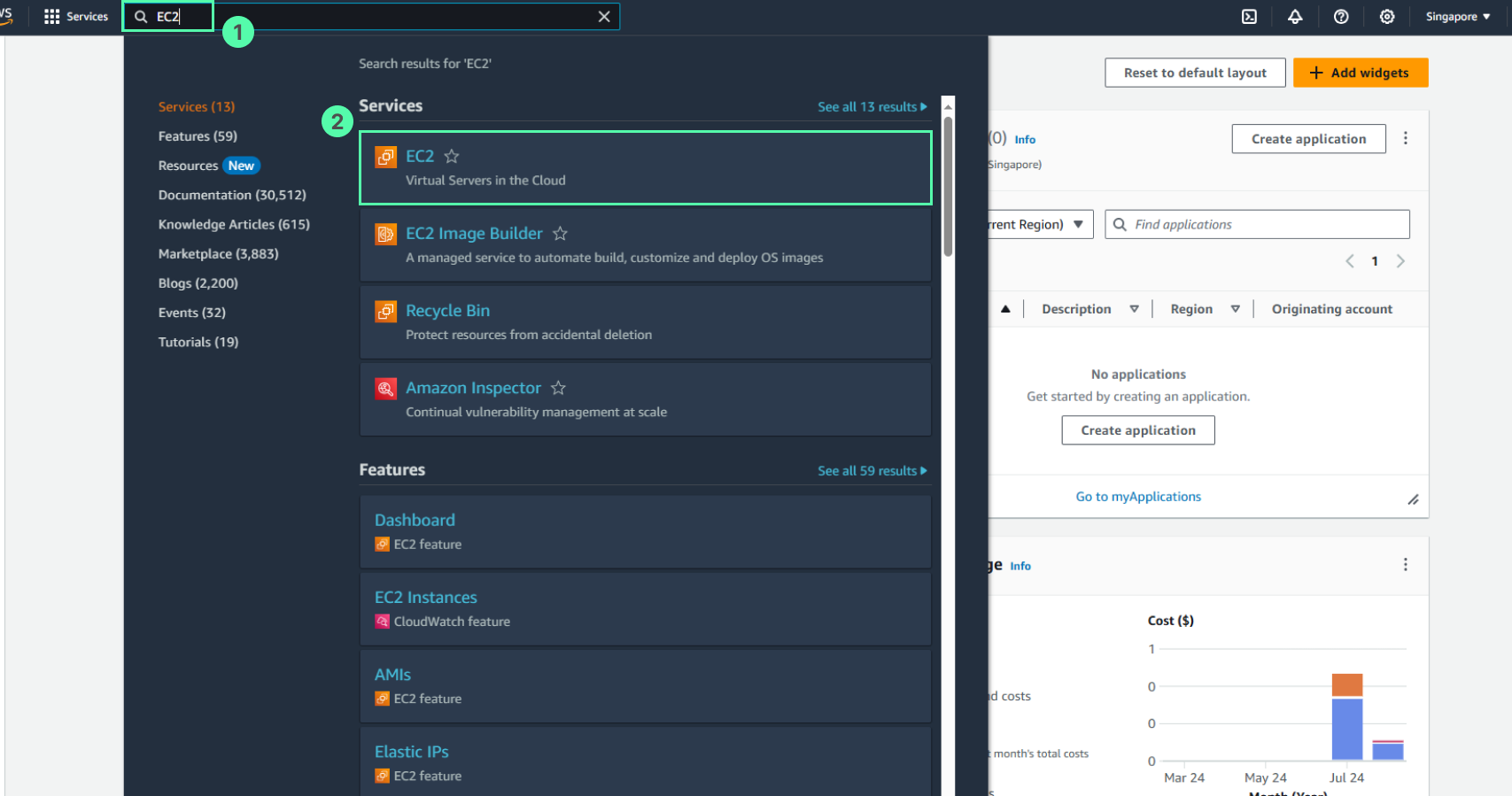
You need to launch an EC2 instance for the practice environment, then connect to this server with SSH via Visual Studio Code. The EC2 instance will be launched in the default VPC.
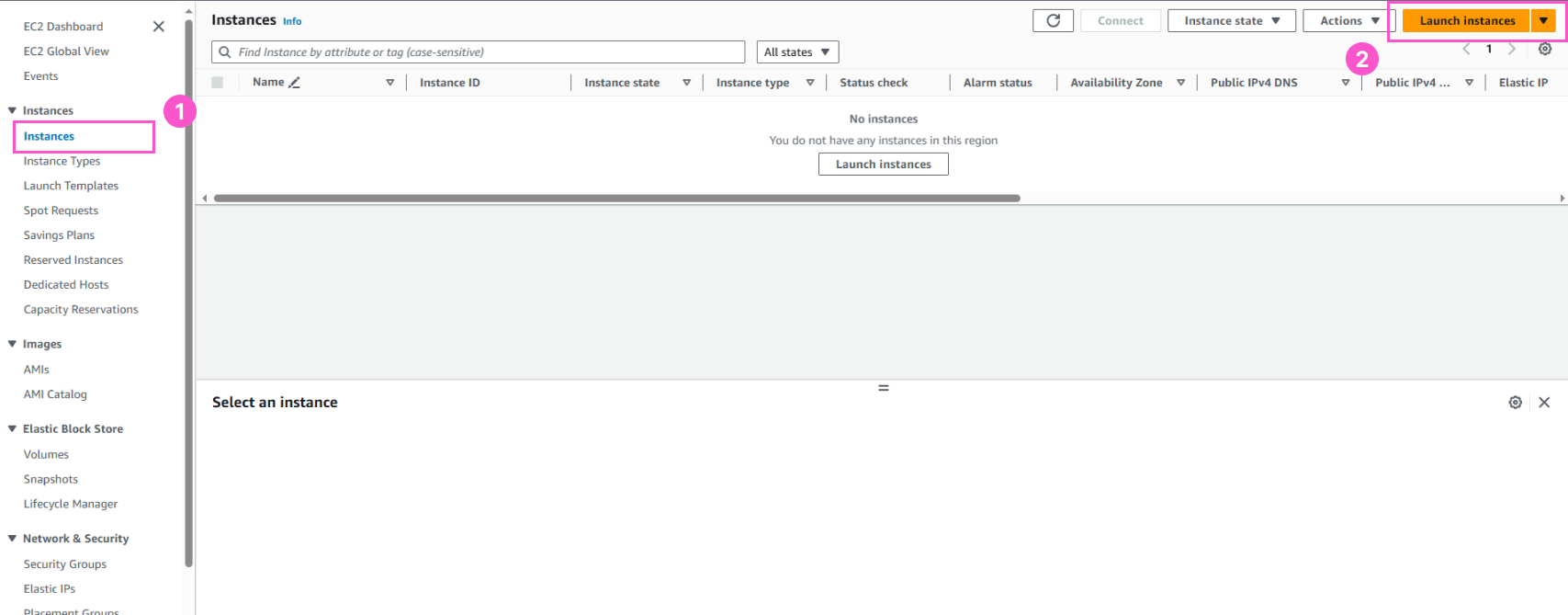
- In the EC2 interface
- Select Instances
- Select Launch instance
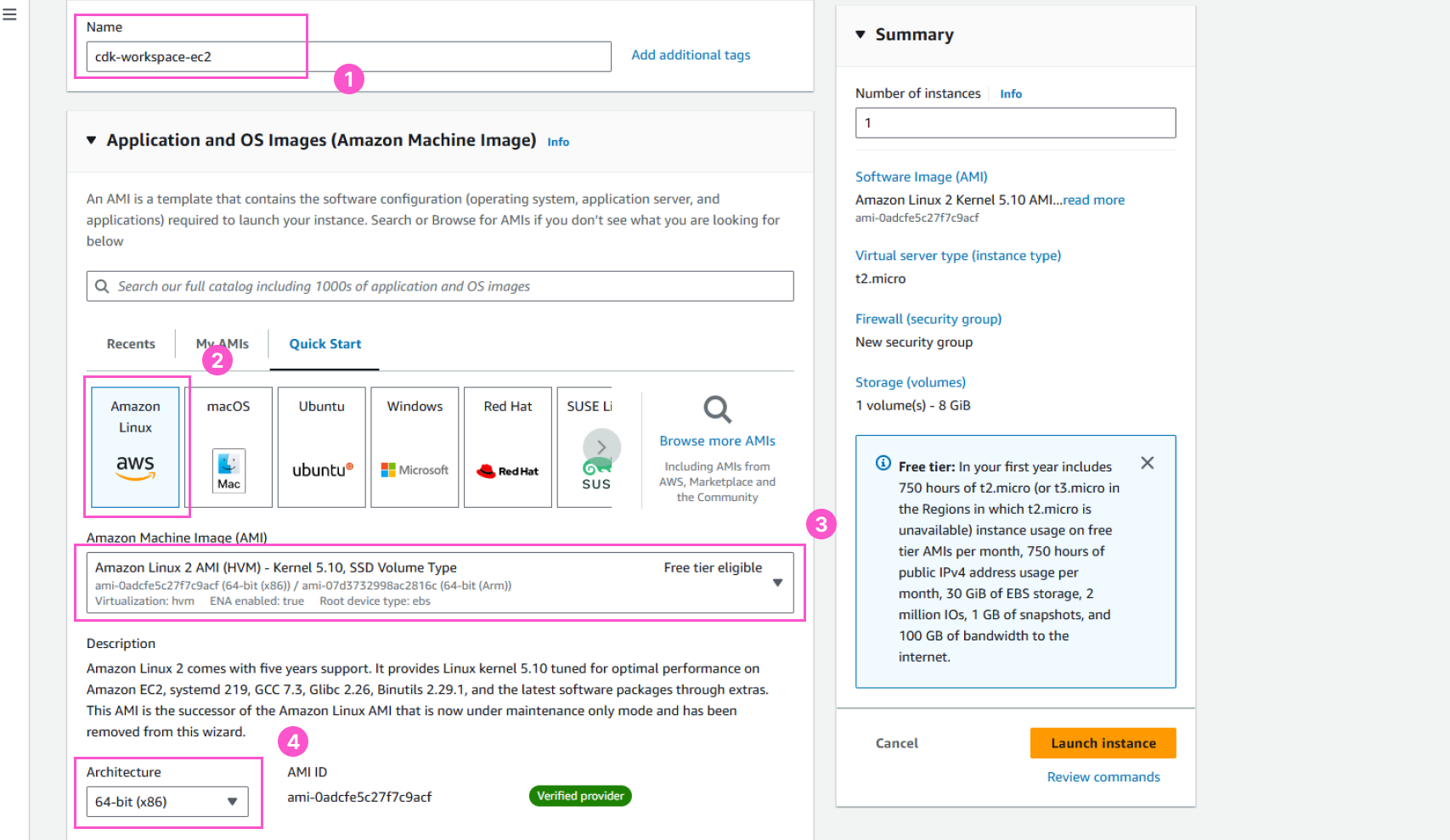
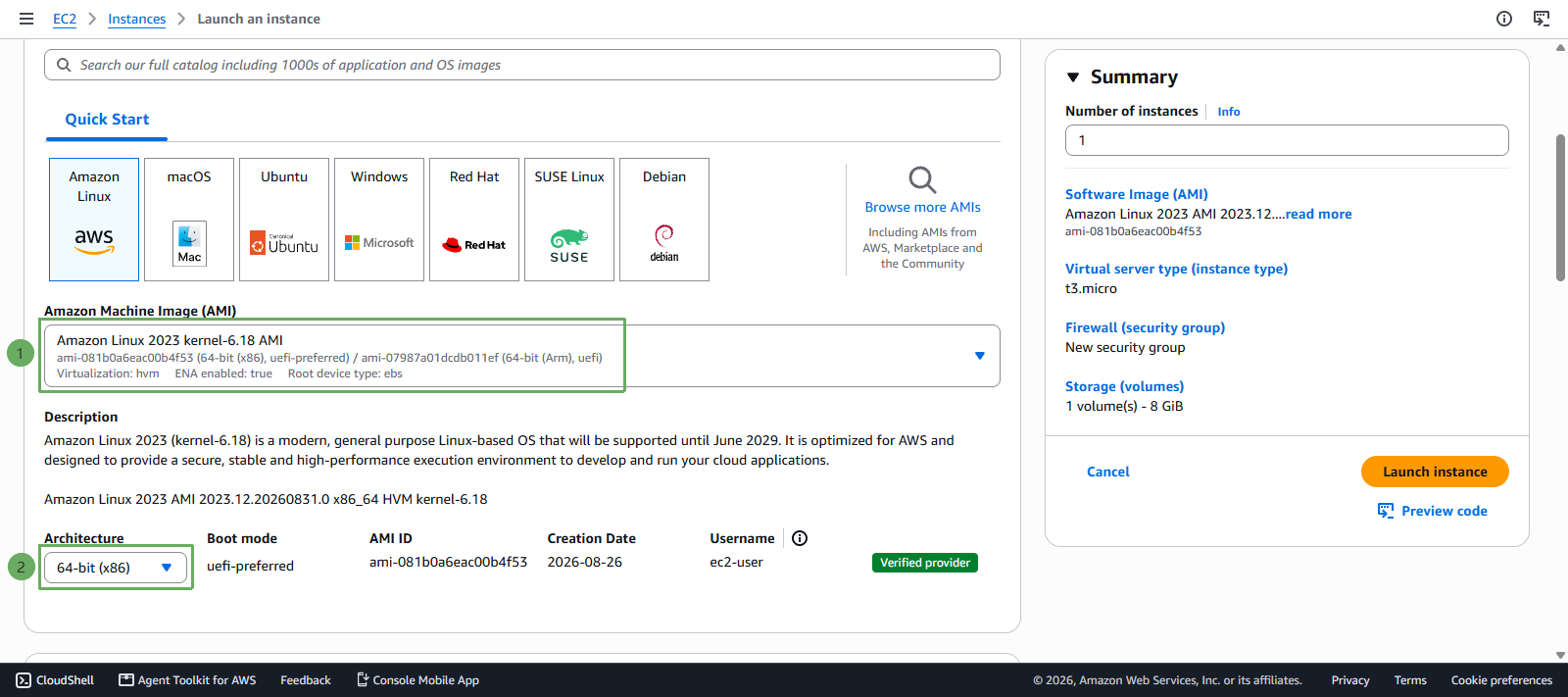
- In the Application and OS Images section
- Name:
cdk-workspace-ec2 - Select Amazon Linux
- AMI:
Amazon Linux 2023 kernel-6.18 AMI - Architecture:
64-bit (x86)
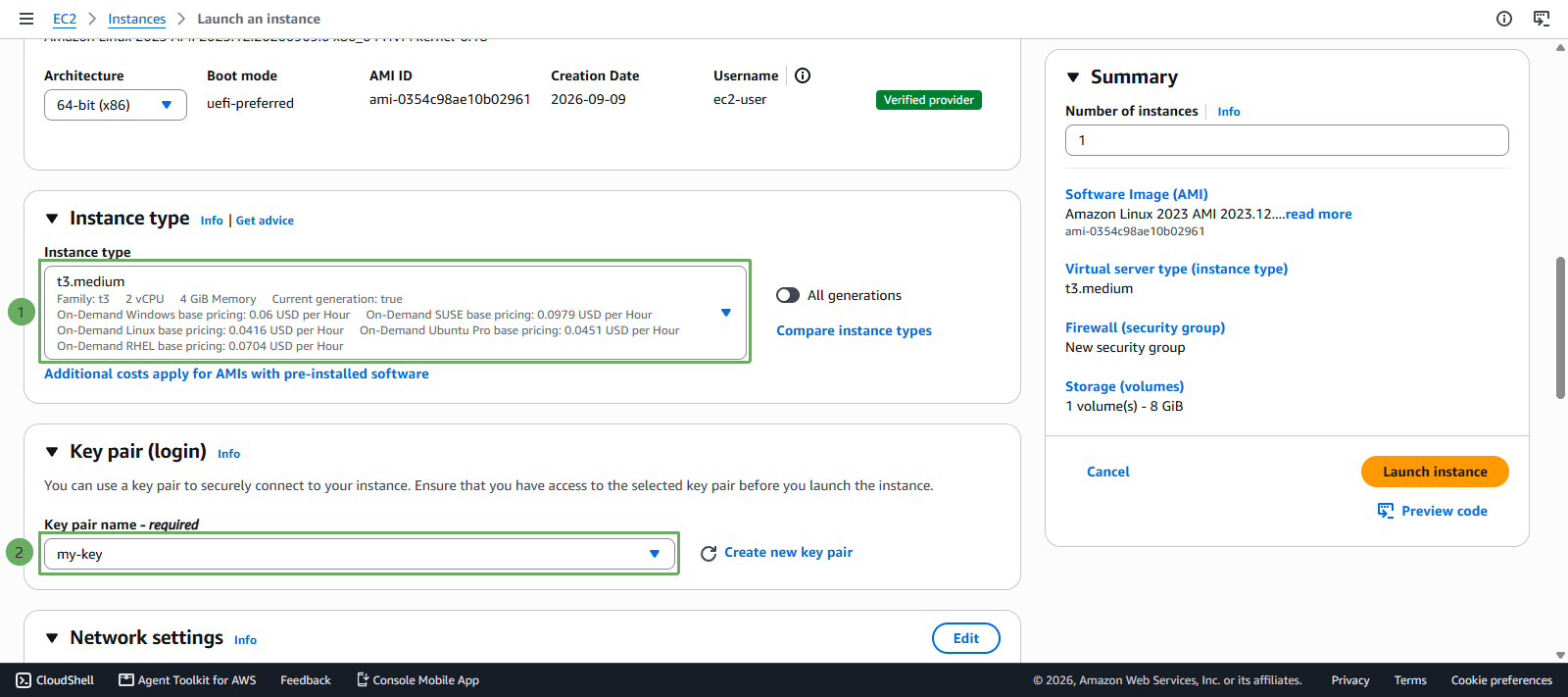
- Select Instance type and create new / select an existing key-pair
- Select
t3.small - Select a key-pair if you already have them. If not, create as follows:
- Select Create new key pair
- Name:
my-key - Type:
RSA - Private key file:
.pem - Select Create key pair
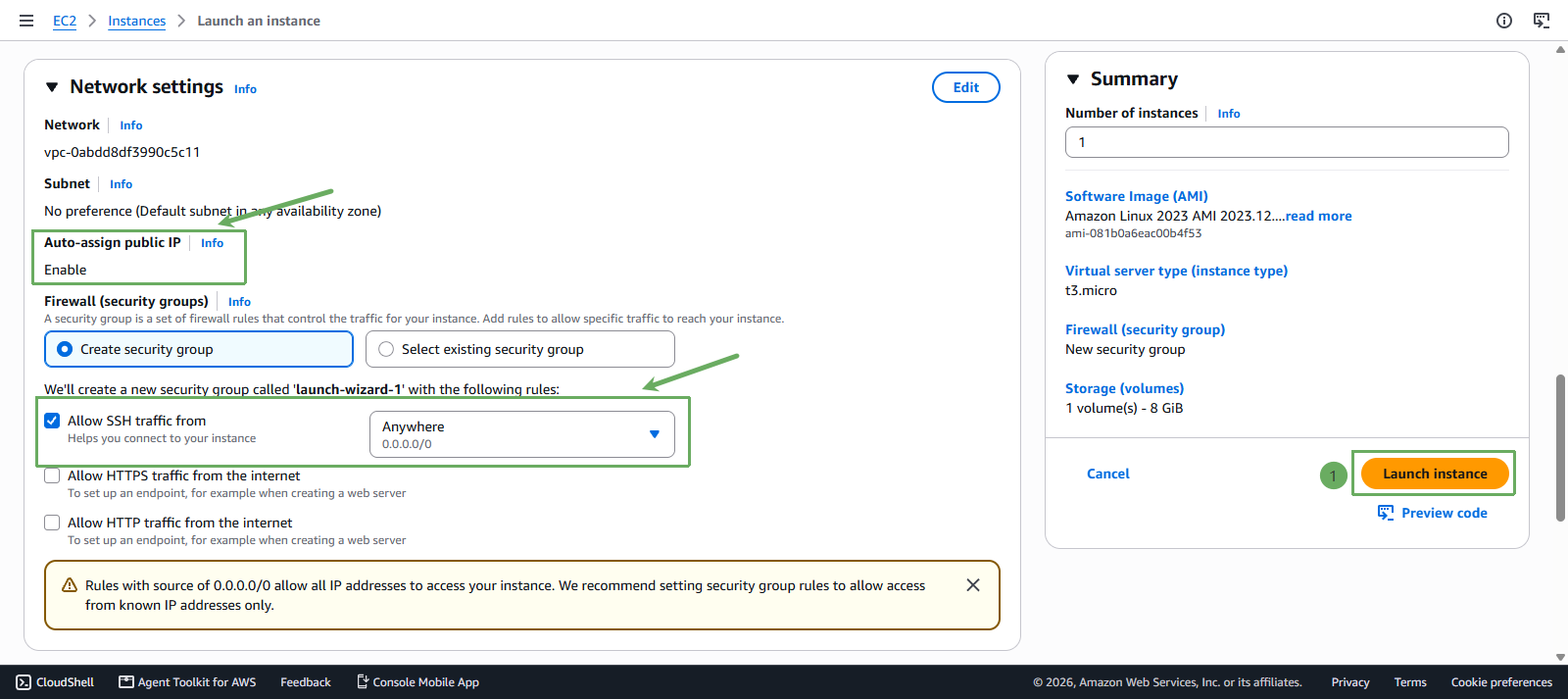
- In the Network settings section
- Leave everything as default, but:
- Auto-assign public IP: select enable
- Allow SSH traffic from: select Anywhere (0.0.0.0/0)
- Select Launch instance
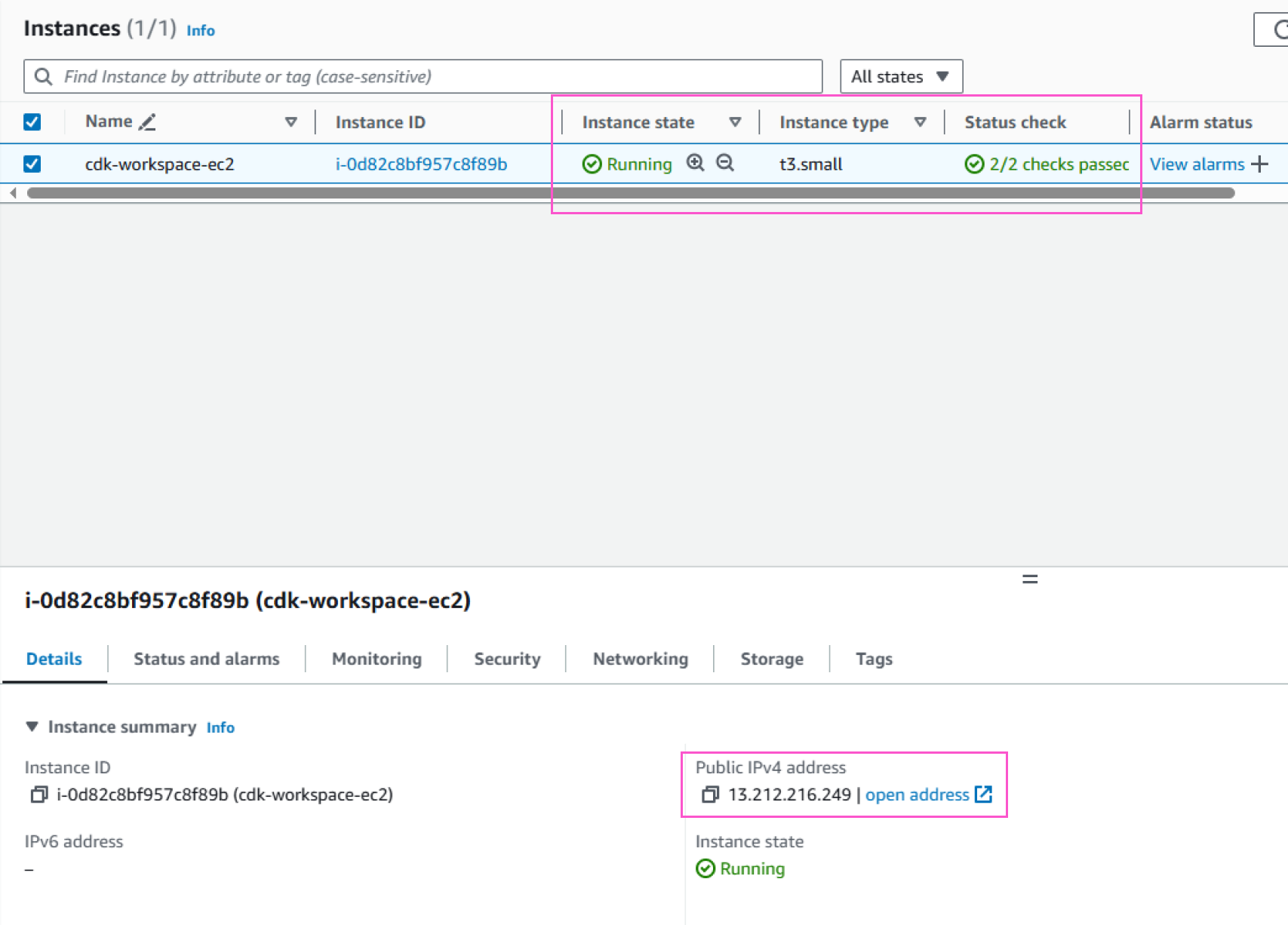
- Check EC2 launch result