Lambda and S3
Lambda and S3
In this section, we will configure a lambda function with API Gateway. We will reuse the template from the previous section (API Gateway and ECS)
This section continues working on the cdk-workshop-02 project. Make sure you are inside the project folder and have activated the venv. If you open a new terminal, re-run:
cd ~/cdk-workshop-02
source venv/bin/activate
- Create a folder named
resourcesin the root of the project folder
mkdir resources
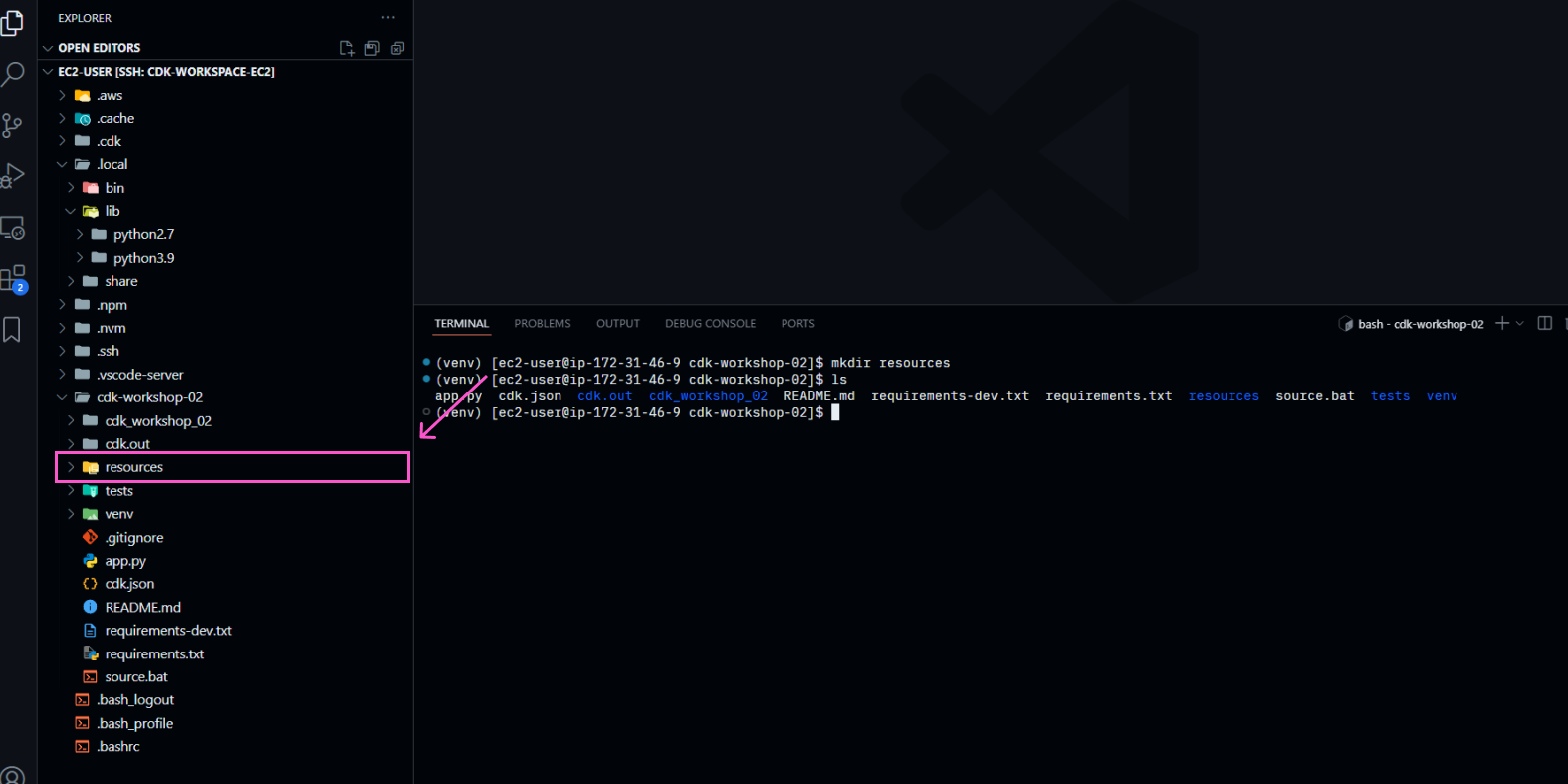
- Create a file
widget.jsin theresourcesfolder (used to create the lambda)
/*
This code is used to call the response handler of an asynchronous function.
It illustrates the use of async-await.
AWS supports both async-await and promises
For more information, please see:
https://developer.mozilla.org/en-US/docs/Web/JavaScript/Reference/Statements/async_function
https://developer.mozilla.org/en-US/docs/Web/JavaScript/Guide/Using_promises
https://docs.aws.amazon.com/sdk-for-javascript/v2/developer-guide/calling-services-asynchronously.html
https://docs.aws.amazon.com/lambda/latest/dg/nodejs-prog-model-handler.html
*/
const { S3Client, ListObjectsV2Command } = require("@aws-sdk/client-s3");

exports.main = async function(event, context) {
  var method = event.httpMethod;
  const bucketName = process.env.BUCKET; // Make sure the `BUCKET` variable exists
    if (!bucketName) {
      console.error('No bucket name provided in environment variables.');
      return {
        statusCode: 500,
        body: 'No bucket name provided in environment variables.'
      };
    }

    const s3 = new S3Client();

    const params = {
      Bucket: bucketName
    };

    try {
      // Send the ListObjectsV2Command to S3
      const data = await s3.send(new ListObjectsV2Command(params));

      // Extract the object keys if they exist
      const objectKeys = data.Contents ? data.Contents.map(obj => obj.Key) : [];

      // Return a response
      return {
        statusCode: 200,
        body: JSON.stringify({ "objectKeys": objectKeys })
      };
    } catch (err) {
      // Log the detailed error for troubleshooting
      console.error('Error listing objects:', JSON.stringify(err, null, 2));
      return {
        statusCode: 500,
        body: `Error listing objects: ${err.message}`
      };
    }
}
This lambda function will return the keys of the objects present in the S3 bucket.
- In
cdk_workshop_02/cdk_workshop_02_stack.py, initialize an S3 Bucket
# Add S3 bucket
bucket = s3.Bucket(self, "WidgetStore")
- Create a Lambda function and grant this function read and write permissions
# Add Lambda function
handler = lambda_.Function(self, "WidgetHandler",
  runtime=lambda_.Runtime.NODEJS_18_X,
  code=lambda_.Code.from_asset("resources"),
  handler="widget.main",
  environment=dict(BUCKET=bucket.bucket_name)
)

# Grant bucket permission to lambda function
bucket.grant_read_write(handler)
- Create an API Gateway integration
# Create integration
get_widgets_integration = apigateway.LambdaIntegration(
	handler,
	request_templates={"application/json": '{ "statusCode": "200" }'}
)
- Create a new resource, and add a new method for the API Gateway
# Add resource and method for proxy request
lambda_proxy = api.root.add_resource("lambda")
lambda_proxy.add_method("GET", get_widgets_integration)
- Do not forget that we also need to add the appropriate libraries to use Lambda, API Gateway and S3.
After adding, review the code in the cdk_workshop_02/cdk_workshop_02_stack.py file.
from aws_cdk import (
    Stack,
    aws_ecs as ecs,
    aws_ecs_patterns as ecsp,
    aws_apigateway as apigateway,
    aws_s3 as s3,
    aws_lambda as lambda_
)
from constructs import Construct

class CdkWorkshop02Stack(Stack):

    def __init__(self, scope: Construct, construct_id: str, **kwargs) -> None:
        super().__init__(scope, construct_id, **kwargs)

        # Declare a Load Balancer Fargate
        lb_fargate_service = ecsp.ApplicationLoadBalancedFargateService(
          self,
          "Workshop02-MyWebServer",
          task_image_options=ecsp.ApplicationLoadBalancedTaskImageOptions(
              image=ecs.ContainerImage.from_registry("nginxdemos/hello")),
          public_load_balancer=True,
          desired_count=3
        )

        # Define API Gateway
        api = apigateway.RestApi(self, "ProxyToLBECS")

        # Get the DNS value of the Application Load Balancer
        lb = lb_fargate_service.load_balancer
        lb_dns = lb_fargate_service.load_balancer.load_balancer_dns_name

        # Add resource and method for proxy request
        proxy = api.root.add_resource("ecs")
        proxy.add_method("GET", apigateway.HttpIntegration(f"http://{lb_dns}"))

        # Add S3 bucket
        bucket = s3.Bucket(self, "WidgetStore")

        # Add Lambda function
        handler = lambda_.Function(self, "WidgetHandler",
        		runtime=lambda_.Runtime.NODEJS_18_X,
            code=lambda_.Code.from_asset("resources"),
            handler="widget.main",
            environment=dict(BUCKET=bucket.bucket_name)
        )

        # Grant bucket permission to lambda function
        bucket.grant_read_write(handler)

        # Create integration
        get_widgets_integration = apigateway.LambdaIntegration(
        	handler,
        	request_templates={"application/json": '{ "statusCode": "200" }'}
        )

        # Add resource and method for proxy request
        lambda_proxy = api.root.add_resource("lambda")
        lambda_proxy.add_method("GET", get_widgets_integration)
- Deploy the stack
cdk deploy
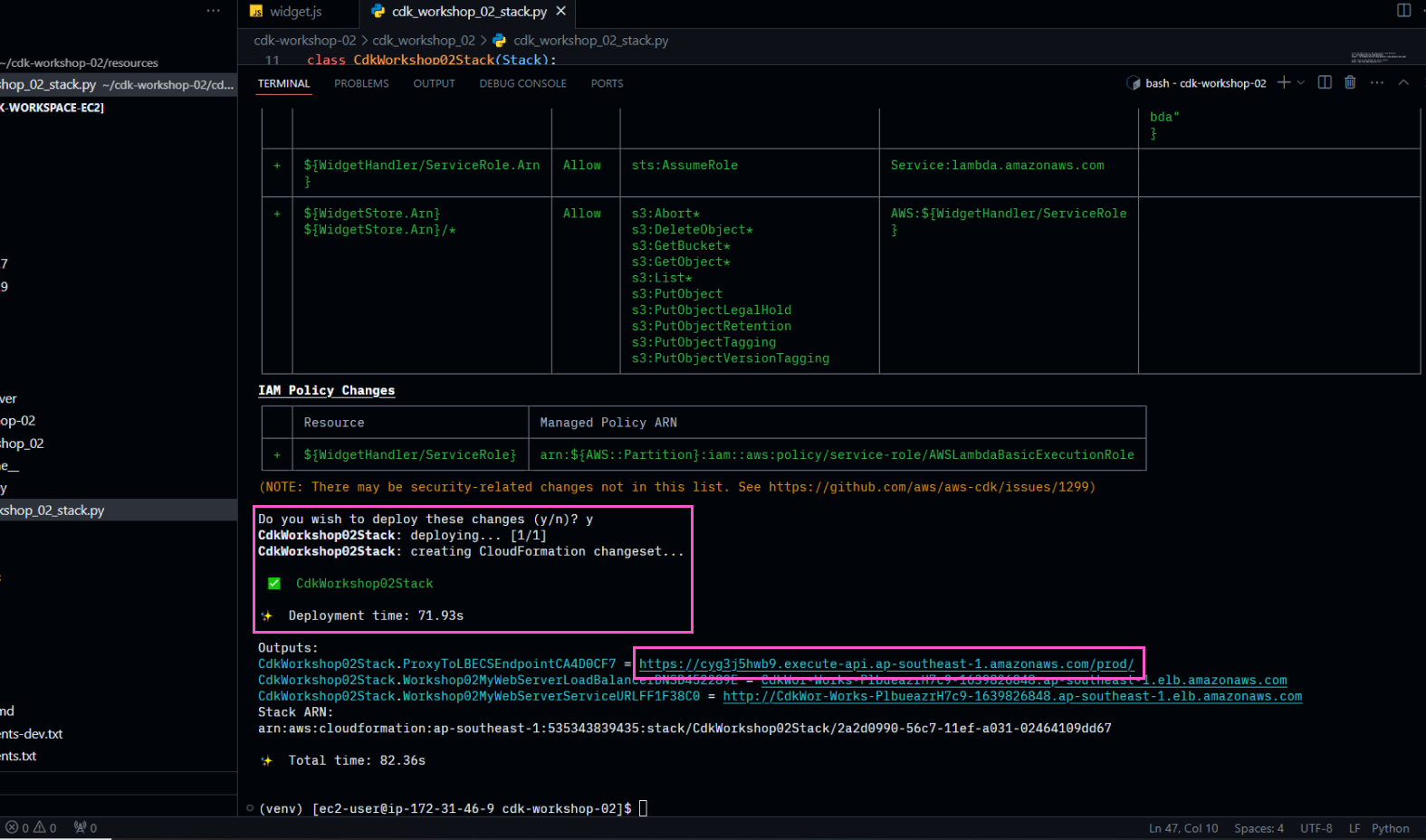
- Upload a file to the S3 Bucket to check
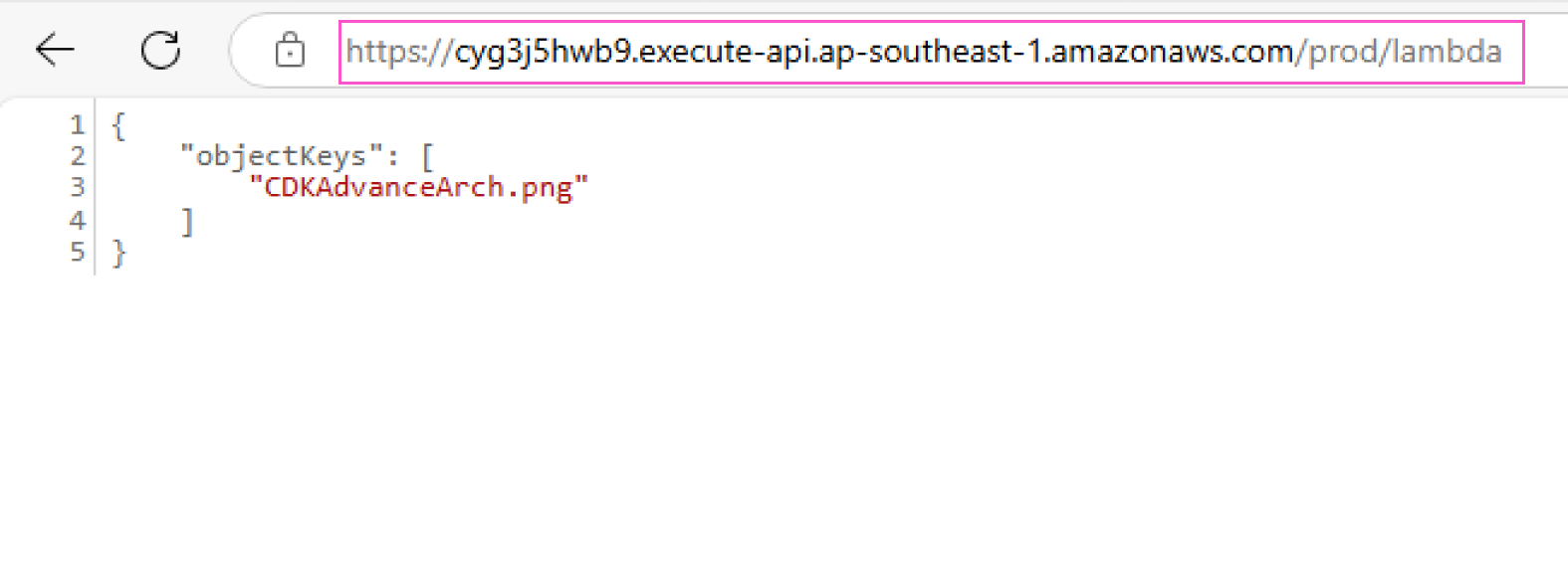
Access the API gateway link, append the path /lambda. You will see the result returned from the lambda function.
To check, go to the S3 Console. Access the created bucket and upload any file
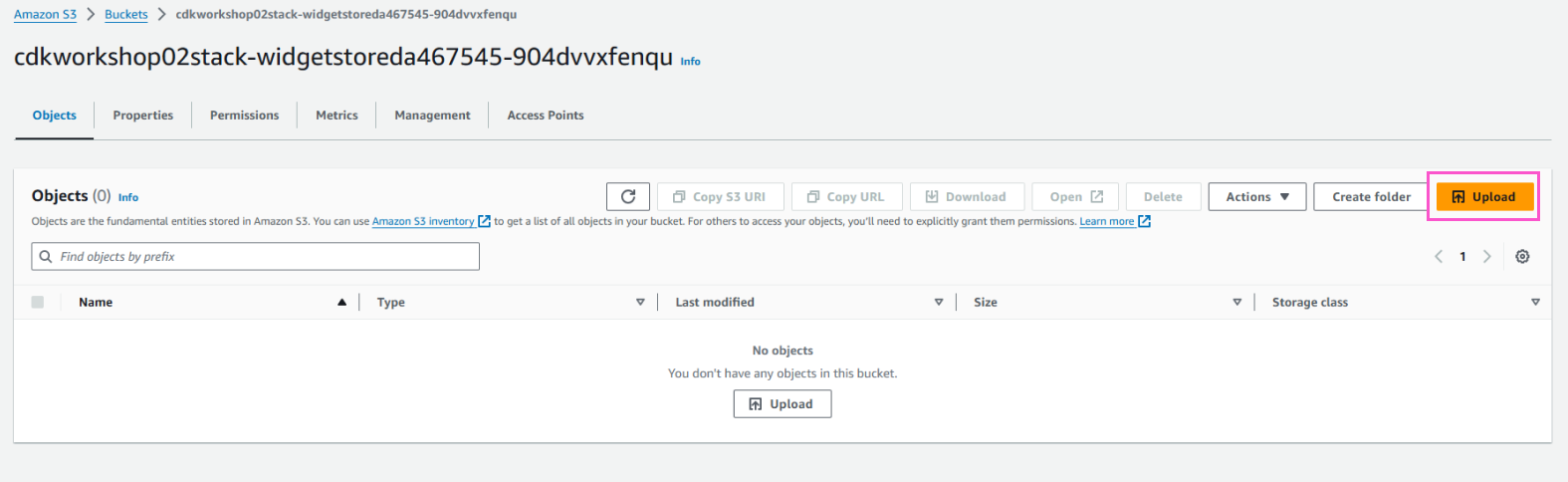
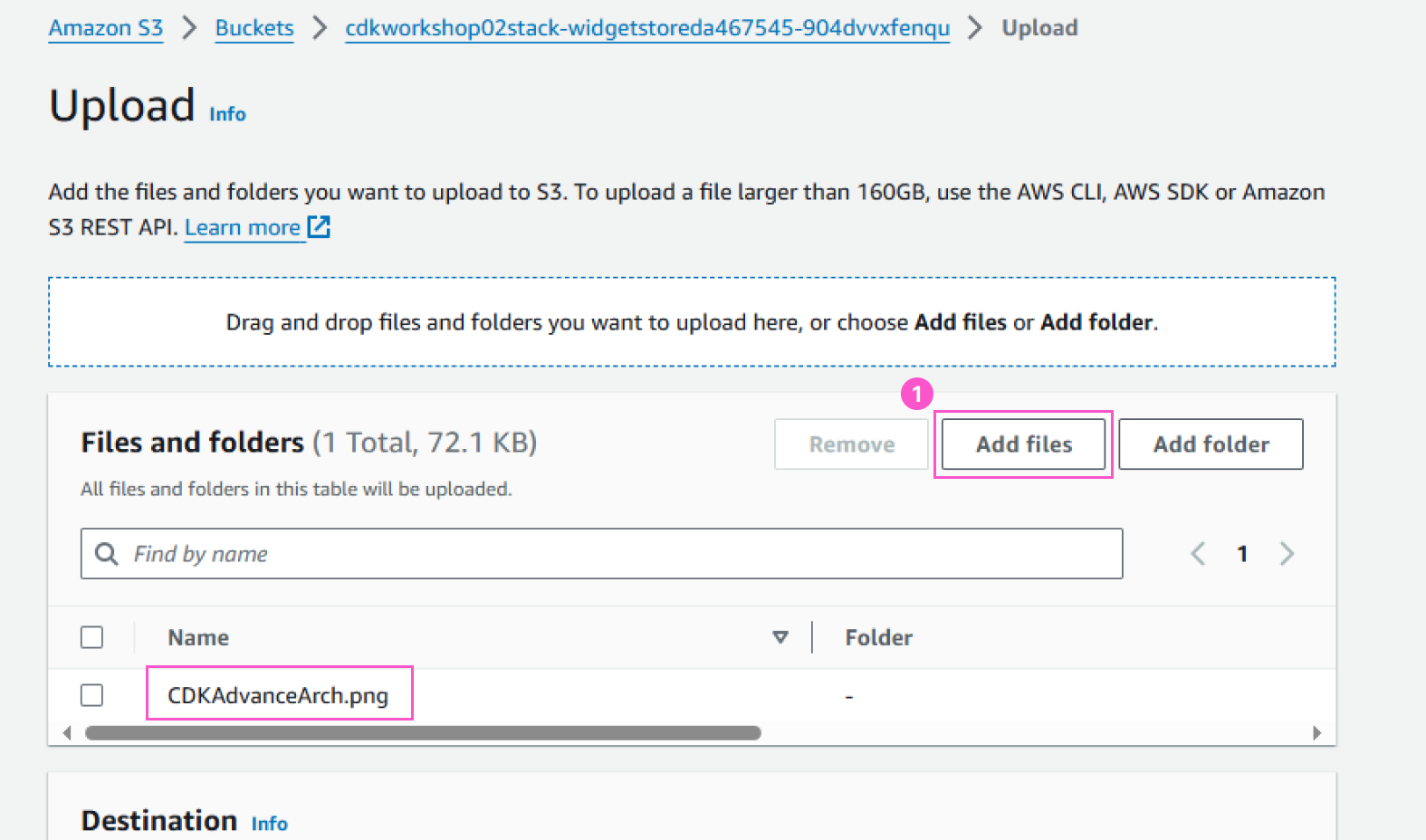
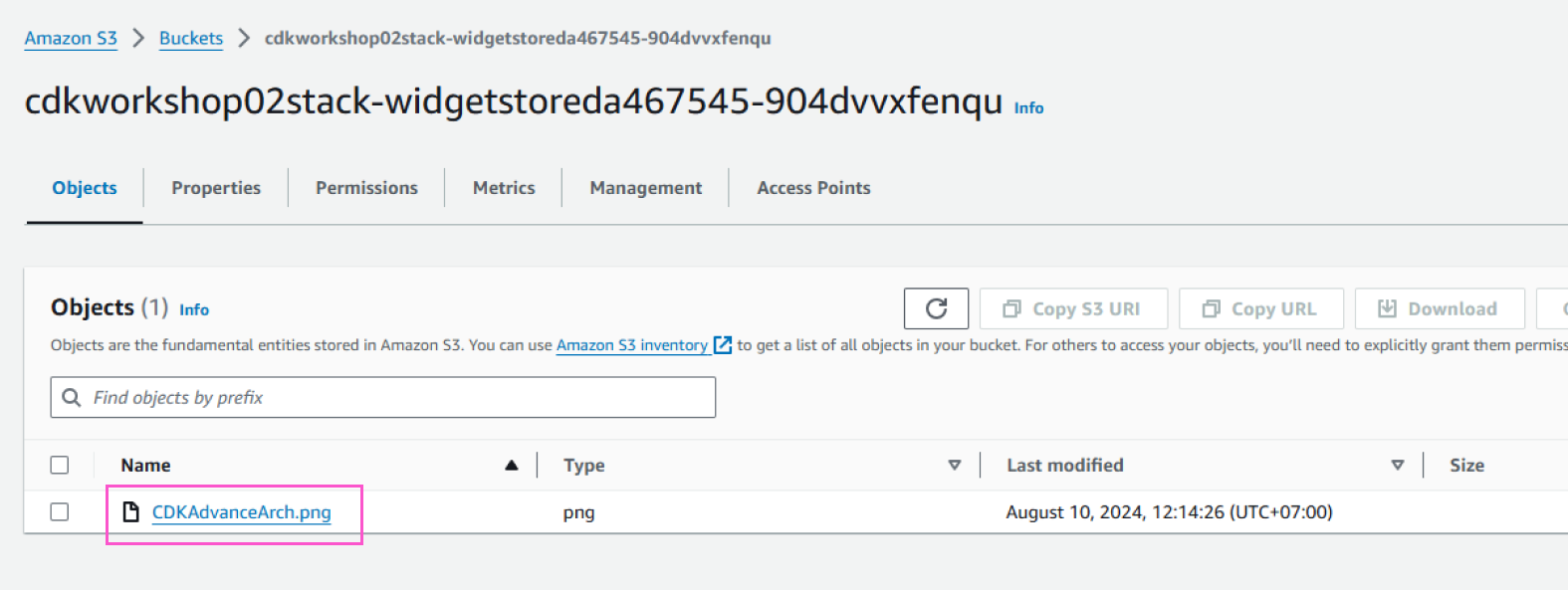
- Click Upload
- Check the result
Access the lambda function path xxxxxxx.execute-api.[REGION].amazonaws.com/prod/lambda of the API Gateway again. You will see the new file name displayed.
If you have reached this point, congratulations on completing the second part of the CDK Basic 2 lab. In the next section, we will refactor the project by splitting the components in the cdk_workshop_02/cdk_workshop_02_stack.py file into different files, and use nested stacks to deploy our system architecture.